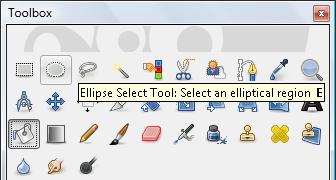
Other select tools are the Ellipse Select Tool, the Free Select Tool and the Fuzzy Select Tool.
For example, if we select the Ellipse Select Tool, we can trace circles.
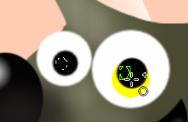
For this example, we select the "ojos" layer (eyes layer). We will repeat the process of inserting sparkles in its eyes but using another process. We can also use this and other tools clicking on a key or a combination of keys to access it. Click on E to enable the Ellipse Select Tool.
Using short cuts or keys makes our work faster. If you place the cursor over several tools, you will find the description along with the hot key(s) (in bold) which activates it.
Mode of Selection.
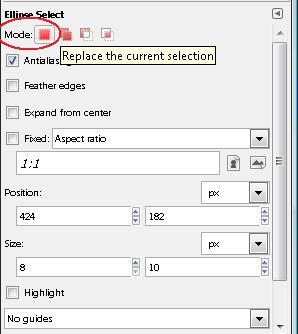
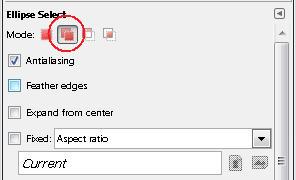
Of all the options, one of the most important is the Mode. The different icons indicate the different selection modes.
By default, we have the option 'Replace the current selection'.
In this case, every time we select, we will replace the previous selection.
However, and as is the case in this lesson, we will click on the icon 'Add to the current selection'. With this, the selections will add themselves up. In this case, and because we are creating sparkles on both eyes, we will use this mode.
Now, we can select the Bucket Fill tool and fill the selected area.
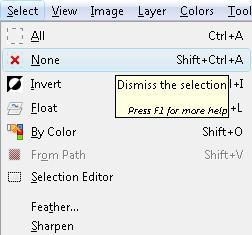
Once we have finished this, the selected part will still be active as long as we don't remove it. To be able to continue working in other areas, we need to disable it. We do this in 2 ways: Going to the Select Menu and select None, or combining the keys Shift + CTRL + A